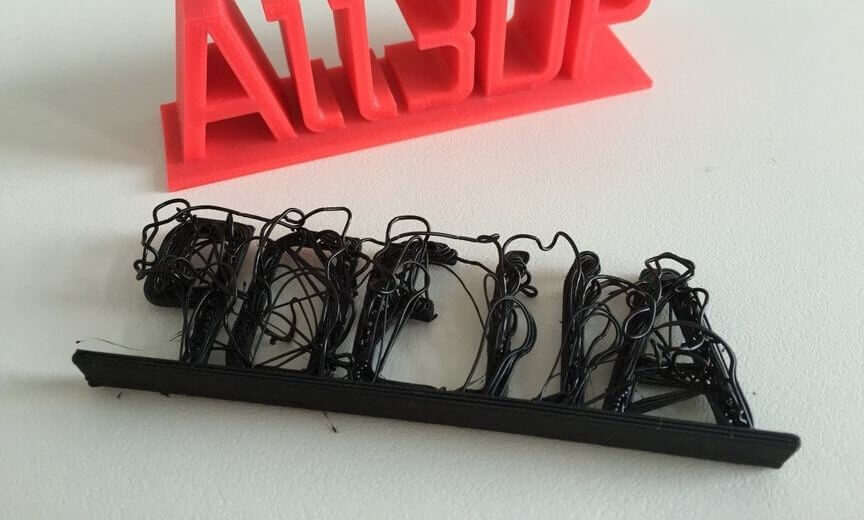
Fused Filament Fabrication Frustrations? Read our 3D printing troubleshooting guide to the most common 3D printing problems and their solutions. It’s amazing what your 3D printer can produce. But we’ve all had those infuriating moments when, despite everything, a seemingly simple model just refuses to print successfully. You’ve checked the model, and seen countless others make…
Category 3D Printing Trouble Shooting Guide
3D Printer Troubleshooting Guide to 19 Common 3D Printing Problems|Part Two
Today we will continue with our topic on “troubleshooting guide to 19 common 3D printing problems”, and provide practicable solutions for you 3D printing hobbyists! 3D Printing Problems #10: Over-Extrusion What’s the 3D Printing Problem? Over-extrusion means that the printer supplies more material than needed. This results in excess material on the outside of the…
3D Printer Troubleshooting Guide to 19 Common 3D Printing Problems|Part One
Frustrated with Fused Filament Fabrication? Read our 3D printer troubleshooting guide to the most common 3D printing problems and their solutions. You’ve checked the model, and seen countless others make it without issue, but try as you might it just won’t print. What is it that keeps going wrong? This article will help you to…
A collection of post-processing guides make 3D printing Easier!!
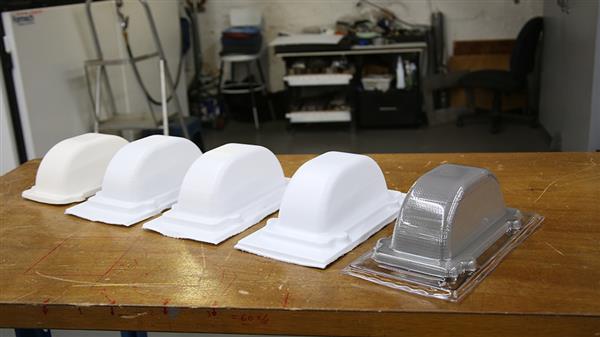
Here are six new guides to post-processing for 3D printing, including how to sand, glue, and paint 3D printed items. This short article shows how to achieve a perfect surface finish, as well as how to make silicone molds from 3D prints and how to carry out vacuum forming. Post-processing opens up a world of interesting…
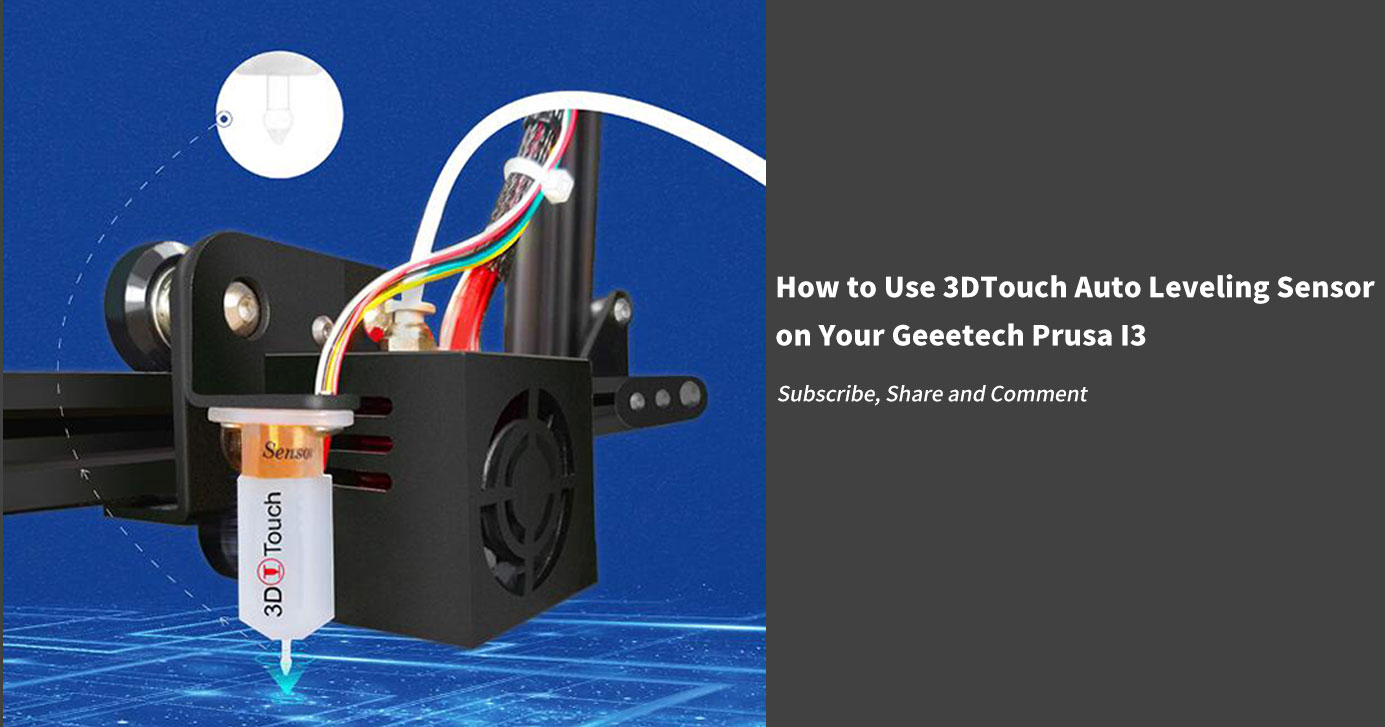
How to Use 3DTouch Auto Leveling Sensor on Your Geeetech Prusa I3
3DTouch is an auto leveling sensor for 3D Printers that can precisely measure the tilt of your print surface. It can greatly improve the printing precision of your 3D Printer. 3DTouch features simple, smart and precise. It could work with nearly any kind of bed materials, such as glasses, woods, metals and so on.The main…
Best Mods and Hacks on Geeetech Prusa I3 Pro You Don’t Want to Miss
Geeetech has provided at least 6 DIY 3d printer kits for our customers to learn about 3D printing from scratch. After a long time of use and you have become a master of the printer, you can unleash your creativity to do as many modifications as you like. Today I would like to share with…
12-Year-Old Builds Working 3D Printer out of Over-the-Shelf LEGO Parts and a 3D Printing Pen
It is often said that the youth of today are the future. This is accurate in just about on every regard, and considering the nature of how linear time works, it would be difficult to find someone who doesn’t find truth in the statement. The more I follow 3D printing, however, the more I become…
How to Print dual color models with geeetech prusa I3 pro C
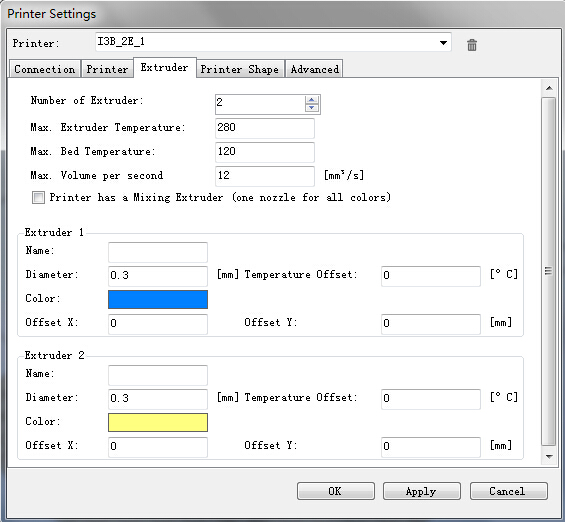
if you are interested in 3D printing, you cannot afford to miss this post, today, i will show you a step by step instruction on how to print dual color models with geeetech prusa I3 pro C. Before reading this text,please make sure you have already read the set up guide of the version of 13B single extruder and you can use it to print 3D models. If not, please learn how to operate the single extruder. Of course, you can take this one as the single extruder version to start. Step 1:Open Repetier Host,click Config/Printer Settings to set up the connection. 1. Name your printer. 2. Select the corresponding COM port and baud rate. Baud rate is generally 115200 or250000. 3. If you are not sure about the COM port, you can check it in your device menager. Step 2: Set up your extruder Choose the number of extruder, here we choose 2. Set up the diameter and color of filament Offset X/Y refers to the distance between the two extruders,which can be adjusted based on real situations. You can leave it alone now. Step 3: Set up the shape of printer Choose Classic printer as the printer type. Home X: min Home Y: min Home Z: min Print height: 150 Now,you can click the Connect button on the left corner to check whether it can connect with your printer. If it fails, please recheck the COM port and Baud rate. Step 4: Manual control …